# Working With Raspberry Pi And 16 X 2 LCD Display
# Working With Raspberry Pi And 16 X 2 LCD Display
In this tutorial, we will be talking about how to interface the Raspberry Pi and 16 X 2 LCD using GPIO and Python.
At the end of this blog, you will be able to,
* print your custom message on 16 X 2 LCD
* print the current time, weather, and weather condition in LCD
To follow this tutorial, you will need the following.
* Raspberry Pi (We are using Raspberry Pi B+ model)
* 16 X 2 LCD Display
* Resistors
* Jumper Wires (Male to male and Female to male)
* Breadboard
**LCD Pinout**
* GROUND (GND)
* VCC +5V (not to be confused with 3.3V)
* Contrast Adjustment (Vo, usually we use variable resistor)
* Register Select (RS)RS=0: Command, RS=1: Data
* Read/Write(RW)RW = 0: WriteRW=1: Read
* Enable
* Bit (0) Not required in 4bit operation
* Bit (1) Not required in 4bit operation
* Bit (2) Not required in 4bit operation
* Bit (3) Not required in 4bit operation
* Bit 4
* Bit 5
* Bit 6
* Bit 7
* LED Backlight Anode (+)
* LED Backlight Cathode (-)
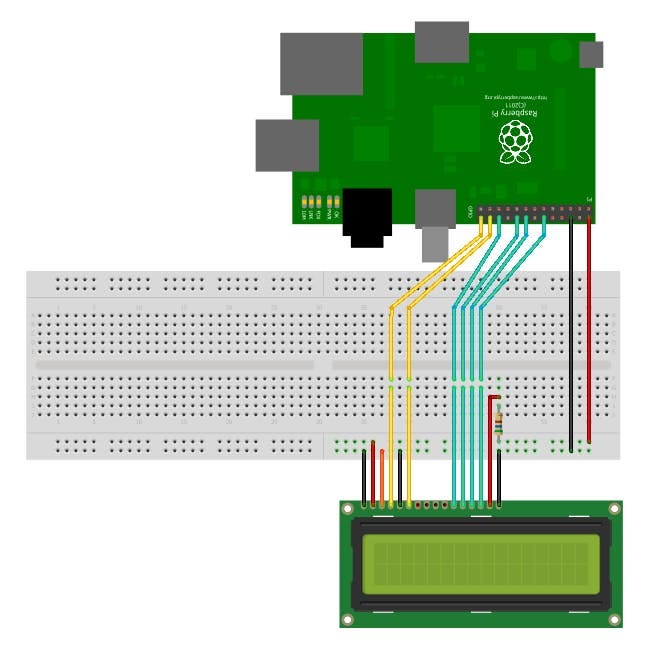
**Here is how we wired up our LCD**


**Note**
In order to control the contrast, you can adjust the voltage presented to Pin 3\. This must be between 0 and 5V. We used a resistor between pin 3 of LCD to GND of Pi.
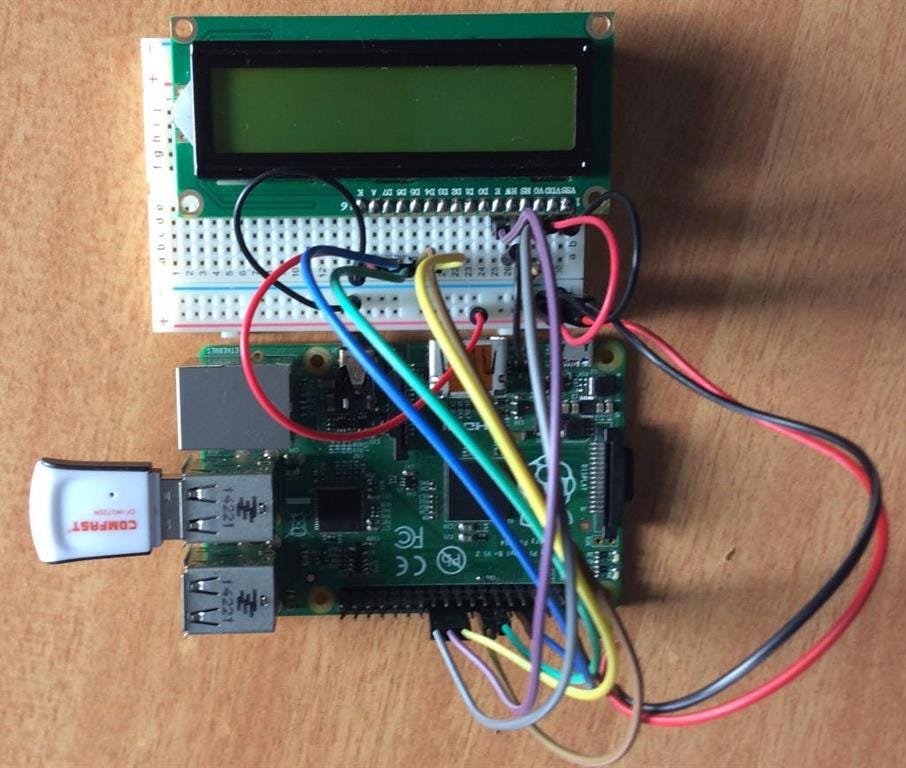
Your circuit should look something like this.

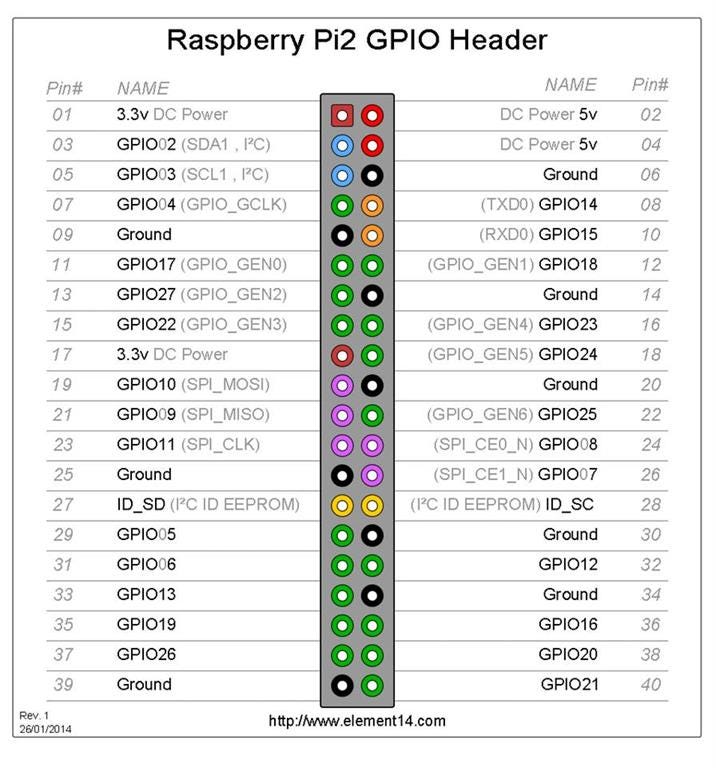
Raspberry Pi b+ GPIO Pinout for reference.

**Python Code**
[Code Goes Here](https://github.com/anishansari/Working-with-raspberry-pi-and-16-X-2-LCD-Display/blob/master/python%20code)


**Displaying current date, time and weather info**
In the above tutorial, we saw how to display the custom message on 16 X 2 LCD using raspberry pi and python.Now we shall move on how to display the current weather info on LCD:
* First, we will need to download the python weather API.Download the pywapi library using the following command on your piwget [_https://launchpad.net/python-weather-api/trunk/0.3.8/+download/pywapi-0.3.8.tar.gz_](https://launchpad.net/python-weather-api/trunk/0.3.8/+download/pywapi-0.3.8.tar.gz)
This will download the tar file of the pywapi library
* Extract the tar file using
_tar -zxvf pywapi-0.3.8.tar.gz_
Now, enter the directory using
_cd pywapi-0.3.8_
Now, run the following command
_python setup.py build
python setup.py install_
You are done with installing the pywapi library. Now, download the source code into your Pi, and save it with .py extension (ex — lcd.py).
To run the code, use the following command.
_python lcd.py_
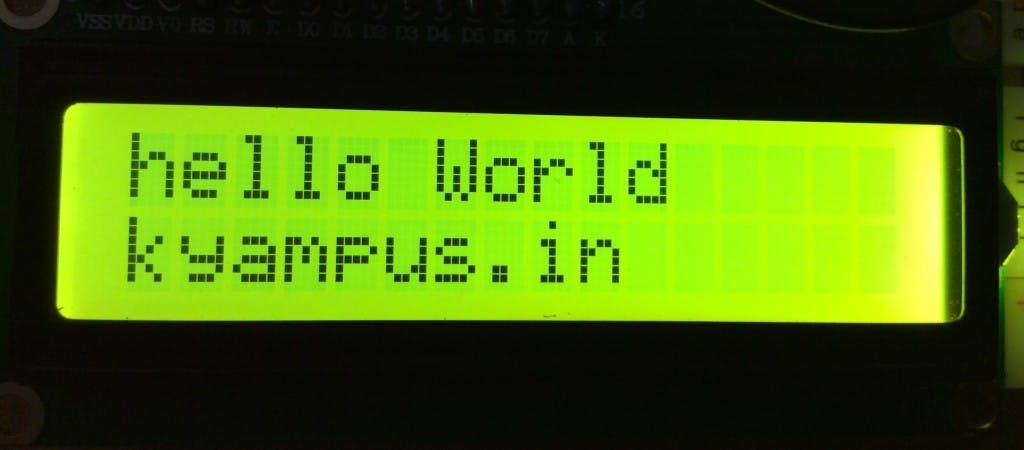
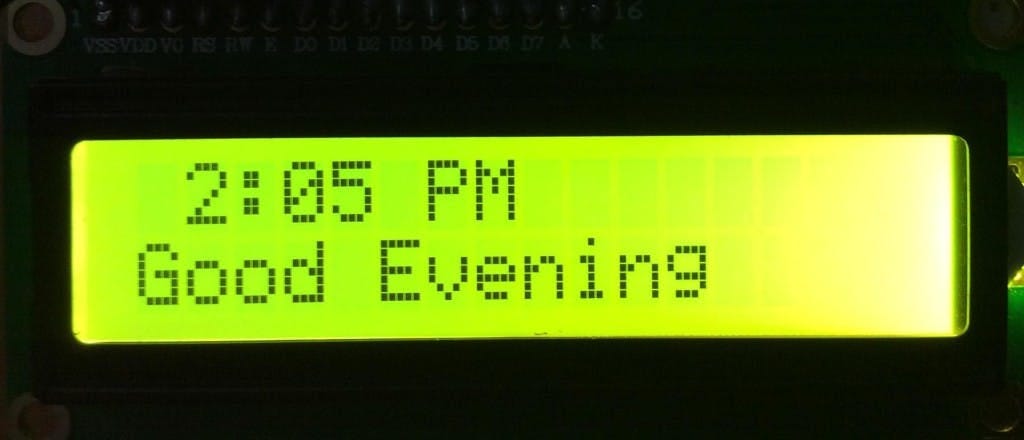
Now, you should be able to see the output as below.


The next step is to find the location code/id of your desired city.
[_https://weather.codes/_](https://weather.codes/)
Open the link and enter your city. You should be able to get unique weather id of your city.
For example, for Bangalore, the weather id is INXX0012, similarly for Kathmandu is NPXX0002.
Now, open your source code and edit the line 8 with your city’s unique weather id.
_#define the weather location id
weather_com_result = pywapi.get_weather_from_weather_com(‘NPXX0003’)_
Now, you should be able to see the weather info of Kathmandu as below.


Get final code from [HERE](https://github.com/anishansari/Working-with-raspberry-pi-and-16-X-2-LCD-Display/blob/master/Final%20Code).


 **Note**
In order to control the contrast, you can adjust the voltage presented to Pin 3\. This must be between 0 and 5V. We used a resistor between pin 3 of LCD to GND of Pi.
Your circuit should look something like this.

**Note**
In order to control the contrast, you can adjust the voltage presented to Pin 3\. This must be between 0 and 5V. We used a resistor between pin 3 of LCD to GND of Pi.
Your circuit should look something like this.

 Raspberry Pi b+ GPIO Pinout for reference.

Raspberry Pi b+ GPIO Pinout for reference.

 **Python Code**
[Code Goes Here](https://github.com/anishansari/Working-with-raspberry-pi-and-16-X-2-LCD-Display/blob/master/python%20code)

**Python Code**
[Code Goes Here](https://github.com/anishansari/Working-with-raspberry-pi-and-16-X-2-LCD-Display/blob/master/python%20code)


 **Displaying current date, time and weather info**
In the above tutorial, we saw how to display the custom message on 16 X 2 LCD using raspberry pi and python.Now we shall move on how to display the current weather info on LCD:
* First, we will need to download the python weather API.Download the pywapi library using the following command on your piwget [_https://launchpad.net/python-weather-api/trunk/0.3.8/+download/pywapi-0.3.8.tar.gz_](https://launchpad.net/python-weather-api/trunk/0.3.8/+download/pywapi-0.3.8.tar.gz)
This will download the tar file of the pywapi library
* Extract the tar file using
_tar -zxvf pywapi-0.3.8.tar.gz_
Now, enter the directory using
_cd pywapi-0.3.8_
Now, run the following command
_python setup.py build
python setup.py install_
You are done with installing the pywapi library. Now, download the source code into your Pi, and save it with .py extension (ex — lcd.py).
To run the code, use the following command.
_python lcd.py_
Now, you should be able to see the output as below.

**Displaying current date, time and weather info**
In the above tutorial, we saw how to display the custom message on 16 X 2 LCD using raspberry pi and python.Now we shall move on how to display the current weather info on LCD:
* First, we will need to download the python weather API.Download the pywapi library using the following command on your piwget [_https://launchpad.net/python-weather-api/trunk/0.3.8/+download/pywapi-0.3.8.tar.gz_](https://launchpad.net/python-weather-api/trunk/0.3.8/+download/pywapi-0.3.8.tar.gz)
This will download the tar file of the pywapi library
* Extract the tar file using
_tar -zxvf pywapi-0.3.8.tar.gz_
Now, enter the directory using
_cd pywapi-0.3.8_
Now, run the following command
_python setup.py build
python setup.py install_
You are done with installing the pywapi library. Now, download the source code into your Pi, and save it with .py extension (ex — lcd.py).
To run the code, use the following command.
_python lcd.py_
Now, you should be able to see the output as below.

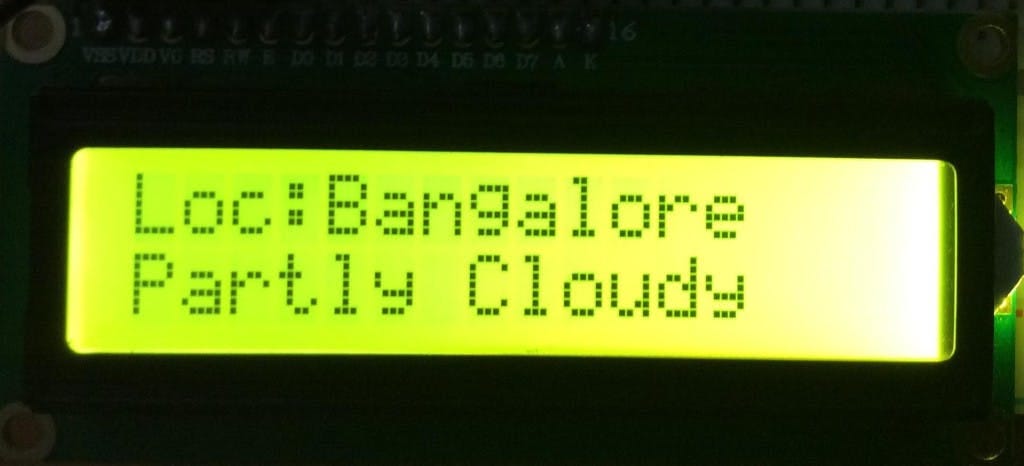 

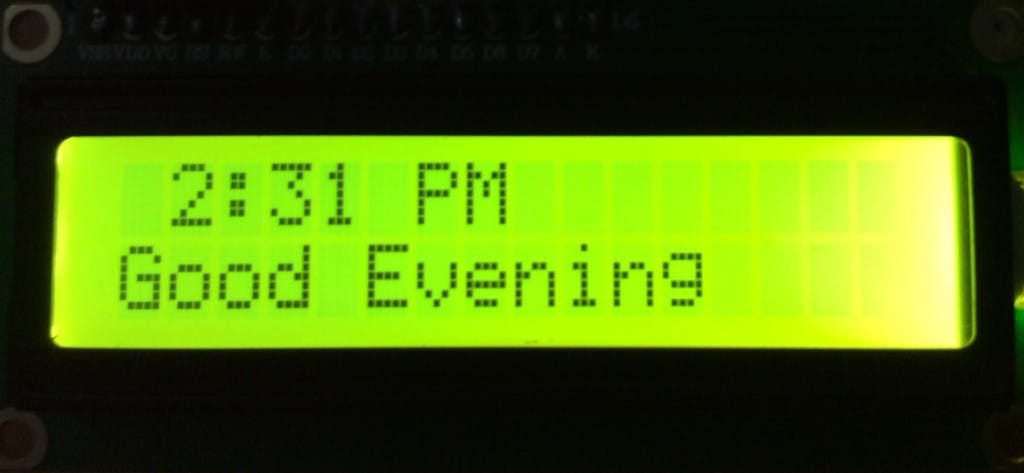 

 The next step is to find the location code/id of your desired city.
[_https://weather.codes/_](https://weather.codes/)
Open the link and enter your city. You should be able to get unique weather id of your city.
For example, for Bangalore, the weather id is INXX0012, similarly for Kathmandu is NPXX0002.
Now, open your source code and edit the line 8 with your city’s unique weather id.
_#define the weather location id
weather_com_result = pywapi.get_weather_from_weather_com(‘NPXX0003’)_
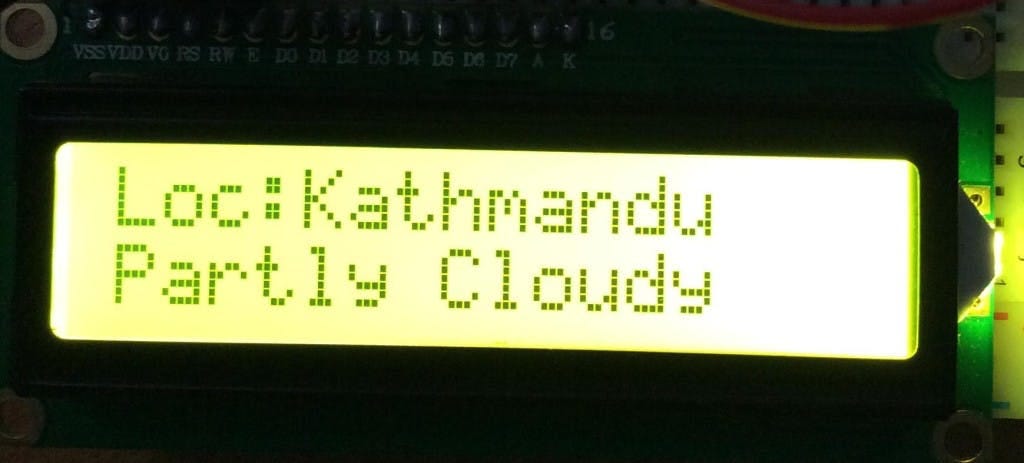
Now, you should be able to see the weather info of Kathmandu as below.

The next step is to find the location code/id of your desired city.
[_https://weather.codes/_](https://weather.codes/)
Open the link and enter your city. You should be able to get unique weather id of your city.
For example, for Bangalore, the weather id is INXX0012, similarly for Kathmandu is NPXX0002.
Now, open your source code and edit the line 8 with your city’s unique weather id.
_#define the weather location id
weather_com_result = pywapi.get_weather_from_weather_com(‘NPXX0003’)_
Now, you should be able to see the weather info of Kathmandu as below.



 Get final code from [HERE](https://github.com/anishansari/Working-with-raspberry-pi-and-16-X-2-LCD-Display/blob/master/Final%20Code).